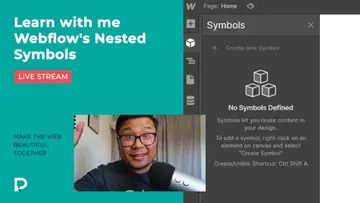
How to Customize Webflow Forms with Select.js
Learn how to customize your Webflow forms. In this video you'll learn how to customize styling, placeholder text, including using select2.js for multiple select boxes

Learn how to customize your Webflow forms. In this video you'll learn how to customize styling, placeholder text, including using select2.js for multiple select boxes
What you'll learn
Customizing the styling of your Webflow forms
Using select2.js for multiple select boxes (pillbox)
How to have Webflow send submissions to multiple email addresses
How to connect Webflow and Zapier and have an email sent when a new form is submitted
How to customize a radio button in Webflow
How to add recaptcha to Webflow
Resources
Transcript
please don't give up me
as i'm walking to your place i'm shaking
i am picturing the worst in my mind
i cannot stand in my please don't give up on me it's like you almost know it cause you're the best cause you're the best this thing so how hey hello do um
unmute your mic nelson thank you
lucy here probably colleen said
check sound thank you colleen
thank you everyone in chat room let's
start this again shall we
and go hey everyone welcome to another
weekly pixel geek live stream i'm your
host nelson thank you for joining me
um yeah it's been a
busy busy week for uh for me
and the rest of the pixel geek team but
before we get into that
how was your week um how are you and
um more importantly where are you
watching from
uh so i want to say hi to people in the
chat room right now we have sean
john junio and um
oli w adele benjamin
christian is here uh pablo is back
20g creative is back christian
yes yes welcome welcome uh where are you
all
from where are you all from and how was
your week
so if you're watching live stream thank
you so much if you're
uh if you don't want to chime in a live
chat that's totally fine at least you're
here hopefully you're learning something
and if you're watching a recording of
this
thank you thank you for clicking on the
video and supporting this channel
uh let's see here we got dallas texas
brazil's in the house
two people from dallas hey john 20g
creative you guys should
work together on a webflow project or a
challenge or something
um we have toronto here
austin texas okay texas is in the house
three people
nice awesome awesome
london sorry i didn't mention before
uh adele is from france welcome
that's awesome
los angeles okay french dude living in
los angeles
nice scotland well i hope you are
all are doing well staying safe
masking up and um staying healthy
i mean we're all gonna get this through
this together
and we just need to you know help each
other out india
dernam durham yeah durham
welcome okay so what are we talking
about
today uh we'll be going over how to
customize
your webflow forms i i still
see some of these questions pop up on
twitter and on
um other social media and other uh
webflow
communities so i'm like okay might as
well make a video about it just to
to help people with this knowledge um
let me see here
all right so but before we get into that
uh let's talk about what happened this
week
and what happened was
we did our visual dev course beta
and um so what it was
is uh a whole
week of teaching people who
aren't really uh familiar with webflow
yet
haven't used it um completely or they
would like
so i had one student who'd never opened
it ever before i had another who was a
marketer
or who she was a marketer um
and uh she would tell developers
she would tell developers what the specs
are and what to do but then she wouldn't
do it herself and she wanted to learn
how to do stuff
herself and another person who is a
graphic designer who's
dabbled with webflow but still didn't
understand the concepts and so
the whole point of it was to teach
people
how to use webflow but first starting
with the concepts of what is html really
what is css
all the way to now you understand
how to build things in webflow with
um collections and make it responsive
and when to use these certain css styles
and they were able to understand that
and it was very amazing and empowering
and it was just
so so fun and
um i really i can't wait to see what
they build
so now that we've finished that we're
going to look through our own notes
and polish the course and
open it up to more people so it's a live
course
four hours a day monday through friday
that's 20 hours
of of live learning where i teach you
live and if you have any questions i
will answer them
live with you all right so this is not a
pre-recorded course
this is just like my live streams but
it's an intense
five day 20 hour course
and we're going to open that up to
around i think 20 seats
sometime in february all right so it's a
beginner course to teach you
all the concepts the basics of web
design and web flow
in 20 hours all right so be on the
lookout for when we open those seats
and if that works we're going to do
another one for advanced stuff like
webflow e-commerce webflow integrations
with zapier
um webflow integrations with member
stacks so you can make a membership
site and how to connect that with circle
um a community chat board
um and how to start um letting people
pay for memberships kind of like on
pixelgeek.com
right now everything that i know oh
including
webflow interaction that'll be the
advanced course so what i'm trying to do
is
show you give off the knowledge of
everything that i've learned in my past
20 years of web design and past seven
years
of webflow give that all to you
in a live format 20 hours
so um that's what's happening that's the
roadmap and if that works
how do you do how do you run a business
using webflow
um yeah so there's the roadmap
and i hope you will join us for
the first live course when it comes out
in february all right so yeah that's
that's what happened and man
that was a great week so yeah listen
here bca hey nelson
welcome rage my dream made it to a live
stream yeah
you made it uh where are you from rage
camilla is here
abdul nice nice
another announcement uh
just want to sit shout out to
mackenzie child who launched a
free clonable framework
called hatch dude is
so good with um
he is so where am i there i am he's
really really good when it comes to
illustrations i'm looking at that bird
i'm like
that is so cute that is so cute
and it makes sense why he's calling it
hatch because his brand is flo
flowmingo.co
so i mean you can clone this right now
i strongly suggest you clone it right
now like open up a new tab
clone it right now um if colleen you can
put the link in the chat
clone this right now because he's going
to lock it down
sometime soon and it'll be a paid for
cloneable template so get it now just
and so that way you don't have to pay
for it
all right and so it's a nice style guide
a nice framework
to help you um you know
help you get started faster with your
with your webflow projects
so let me see here project setup so yeah
he already has class names for you
um if you go to documentation you can
see everything
uh mckenzie okay so
here we go so it takes you to a notion
page and it shows you
how to use all the class names
man he got really oh wow that's really
detailed
this guy worked he worked
what is going on okay yeah
so even if you're not gonna use it just
clone it still and you may use it in the
future
so big ups to mackenzie
check out flomingo.co
really good person really really good
person
all right we're done with announcements
let's get into the tutorial let's go
and figure out what are we doing i don't
know
just kidding we're playing around with
webflow forms
all right so what is the first thing to
talk about hold on gotta go to my notes
ah okay so
there's uh two ways to get a form onto
your page
the easiest way is
going to layouts right here
so add elements panel layouts and
you have your contact form drag that in
cool you're done publish your site go
home
do whatever you're done all right
there's that
or if you want to further customize it
as far as the layout goes you can
go to add elements panel and drag in a
form block
and so form block compared to
a pre-built layout form is
very baseline it's like you you get your
form block
you get your field label your text field
yeah so there's two ways to start on
your form
obviously the pre-built layout way
is much much much more better
right so we have this here and
as far as this pre-built layout goes it
has
a section a container and then all this
content
that you can just double click and
change all right
as far as the layout goes for this it's
actually
inside of a grid and that's how you have
these
two columns so you have first name last
name email phone number
and why does this message take up
both columns it's because it's spanning
two columns so with grid you can do call
spans
okay column span two
or if i wanted to go one i can just drag
that
uh corner handle and there you go
all right and the cool thing about this
pre-built layout is
it saves so much time especially when it
comes to responsive
because if i go here boom it's already
responsive
so let's preview
so yeah
all right so there's that um
yeah and also if you have any questions
during this tutorial ask them in the
live chat
and colleen will jot it down for me and
i'll answer it after the tutorial
or if you have a project that you're
working on
and you need help with it share your
read only link
okay share your read only link or your
finished
uh website link and i will review it or
help you out with
whatever you need help out with in in
your project
all right so we have that contact form
and that's all done and if you want to
add
more fields like for example
if you want to add another field you
have a bunch of
options right here so another label
input or even a select field so if i
drag a select field
in here there we go
okay so i have this select field here
and that select field
to edit the choices for that drop down i
would go
on the element settings element settings
page or tab okay
so that's that now
there's still some people who do not
know that you can play around with the
styles of the placeholder
so what is a placeholder so it's usually
text that is inside
of a text box input text box
that you can overwrite so for example if
i click on the cog
i can say type your first
name here okay
and as you can see it's
like the opacity is kind of faint
compared to
this black and so if i start typing
it goes away if i delete it
then that placeholder comes back but
what if you want a different
type of placeholder style you can go to
your text field
and give it a class name we're going to
call it
text input oh sorry
you call it text input and then
this drop down because it's a form field
it has this new state called placeholder
so i can click on that and then i get
this green class
so it's a special class a special combo
class
and then i can style this however i want
you know like what if i want
the text input to be red you know or
faint red something like this
you know or make it big
for some reason i don't know why
and so if i start typing inside of it it
goes away
so this style of the placeholder
will not be the same style as the type
that is actually being added into the
box
okay so placeholder
really simple all right let's see here
okay um another thing
uh you can do with your forms
is you can have so we have a drop down
field right if someone wants to select a
choice
they can but then
webflow has this option right here where
you can let people select multiple
right so people can select multiple
in that in that field so
if i click on one
that's the problem though i can only
click on one
the only way to click multiple to choose
multiple
is to hold control or uh or command
on your keyboard but like that's such a
that's such a bad user experience you
know
so how do we fix this with custom code
now don't worry i'll break it down for
you as simple as possible
i know that uh webflow is a no code tool
but there are times like this where low
code
can really help the user experience all
right
so what i'm going to use is this thing
called select
two okay and select two
is a way to um let me see here let me
get an example
select two is a way for multi-select to
make it look
better so for example see we have a
bunch of
states okay and um
what if i want to choose multiple states
okay so let me just choose the first one
one
two that much that's much better rather
than having to hold control
or sorry um yeah control or command
and then users can actually
deselect or remove certain items
all right so i will show you how to
add this to your webflow project right
now
okay so we got we have our select field
and we have allow multiple selection
turned on
now let's go to our select field and
let's name it let's give it a name
we'll call it um my
select field
okay why does it do that
so my select field is the name of this
that's the
the name of this box so what i'm going
to do
is go to select2.org
and then
copy this code right here so i'm gonna
copy it
these two lines and i'm gonna paste it
into my pages
header tag okay so in the custom code
i'm going to paste it in the header tag
save so what does these two lines mean
it's basically bringing in their own
custom
css and the javascript the magical
javascript that'll make this happen
all right so yeah save
we're done with that part and now
uh we're done with that we're gonna go
basic use
usage and multi-select box and
um right there the last
part right here so this is saying
when the when the web page is done
loading
that's what this means when the page is
done loading when the page is ready
do something okay and so what is that
something that something is
find a class name
um find an element with this class name
and then do the magical javascripty
stuff
that makes this happen there it is so
when the page is ready
do magical things to this element so i'm
going to copy this
oops
so i'm going to copy that piece of code
go back to my pages panel
and paste it at the end body tag oops
yeah paste it at the end body tag
and i need to wrap this with the word
script
the reason why is because we need to
tell
the the computer hey i have some
javascript right here
and so the computer be like okay cool
tell me what that javascript is
well that javascript is when the page is
ready
do something and what is that something
well
find a thing called my select
field and do that
beautiful magical javascript stuff that
someone already coded and i don't want
to do
cool save publish
and you're done let's take a look
and it didn't work yay why
select two is not a function yeah it is
uh yeah it is
great stream nelson thanks
oh wait did i no no that's right
i pull this in
wait my script is in there yeah just
deliver
select two is not a function
i did it on pixel geek website
uh what
all right fail stream
let me go look on the pixel geek website
i
uh i'm pulling up the pixel geek
community website right now
hold on pixel geek
pixel dash geek dash community
let me see here where did i
do it on i forget is it content
submission
is it this cat yeah it's the tags so i
have tags
oh okay so i put the javascript at the
end okay
there's my problem so this part right
here that they told you to put in the
head
it's supposed to be in the footer so
the css is the only thing that goes into
the head tag
and then right here in the end body tag
that's where i would put that magical
javascript
hopefully this works
yes it did work okay
cool so if i click here
into this box there we go now it's
much easier much much more easier and
more
friendly to the eyes okay so what did we
learn
we learned that you need to name your
field
your multi-select field name it
something
then take that code from select2.org
and paste the css line that css
line right here in the head tag you
paste the javascript line
right here in the end body tag and then
you own your own
then you add your own javascript which
is the
when the page is ready find my select
field
and then do the magical javascript stuff
and that's it
publish your site and you're good to go
cool
all right we got that one done let me go
into
chat and see what's going on
whoa that's a lot of people okay um
okay let's see here camille watching all
your videos and learning so much from
you and the webflow community
thank you i'm glad you're you're
learning
that's the whole point so actually
that's half of the point
if you can do me a favor please whatever
you
learn pass that forward to someone else
especially if you speak a language
either than english there's so much
opportunity out there
for tutorial for webflow tutorials to be
created
in different languages so kamel if
you speak something else do it
please pass that uh knowledge forward
all right uh sebastian hey what's the
best platform to pair up webflow forms
to get multiple responses
sent to multiple email addresses
i'm actually gonna go through that the
next step of this uh
form customization i'm gonna go into how
to connect
this form with zapier so yeah
yeah i will get into that i have some
questions about form integrations what
is the best way to link a webflow form
with hubspot zapier integromat or just
style the embed directly from hubspot
oh cool uh i'm gonna be talking about um
zapier uh not hubspot or integromat but
maybe you can take
these uh concepts
to hubspot in integromat
cool so i guess i'll just
move on all right
so let's let's go into that next part
zapier so let me pull up zapier real
quick on my computer
um login okay um
yeah we'll do that later hold on okay so
what do i need to do
hold on i'm thinking uh okay cool all right so we're here
with our form and what we want to do is
whenever
my apologies i don't understand quiet
you
um that was funny so whenever you
submit whenever someone submits
this form the form data by default
gets saved into your webflow project
okay it goes to the project settings
forms and your forms are saved
here in the form submission data you can
also have that form
send that data over to
uh any email address or multiple email
addresses
as you can see here where it says a
comma separated list of emails to send
form submissions to
so you can just be like something
at example.com something else
at example.com so you can put as many
email addresses as you want
the problem with this is
no matter what form if you have like
multiple forms
on your website no matter which form
that
um gets submitted all of that data will
go to all of these people
it doesn't matter which form you can
have a form for con for general contact
you can have a form for um uh
for business inquiries or press
inquiries like say you have three
different forms on your site
on three different pages once someone
submits
any of those forms it goes to this same
batch of people
you cannot reroute it um so yeah you can't reroute this
inside of webflow natively you can
use web webflow with a zapier
integration and that's what we're going
to go through right now
if you're not familiar with zapier
zapier is uh
the middle it's the middle platform
between
two platforms so from webflow you can
send that data to zapier and then from
zapier you can send it
to almost anywhere
like if you go to explore and you just
look at all the
there we go um over 2
000 apps that you can send your data to
sheets gmail slack i mean
it it goes on and on even as
sms you can send like
if someone submits a form send that data
to zapier and then have that data sent
to
your mom's phone as a text message i
don't know
or to your own phone as a text message
like uh
there's so many things you can you can
do
insta what's close trainerize
huh yeah just so many things
that you can you can send that data to
so zapier is really cool
all right so let's go ahead and um do
this
so before you start using zapier you
need to
submit you need to submit
fake data so that way
zapier has something to work with right
now you have an empty bucket
and so if you were to start zapier
zapper is gonna be okay cool where's the
data
and then you're telling them um you know
what
i have no data but do something it's
like
and zapier's gonna be like no all right
so uh give zapier fake data to work with
so
first name uh be like um
sarah last name connor
all right email address um
from the future at
example.com phone number
uh five five five five five five five
message i'll be back cool
submit
all right awesome i submitted it and if
i go here to my forms
uh settings in my project and press
submit or refresh
scroll down yay i have my data
cool sarah connor from the future first
there i'll be back
sweet wait i have extra fields
hmm i'll have to look in that later
anyways
so we have our fake data now we can go
to zapier
and zapier's free it's a freemium so you
can create zaps right now for free
and i would strongly suggest learning
zapier because it'll
such a great tool to have
right so i want to connect webflow
with uh an html
oop i want to do email
let's see here email by zapier
okay okay so
now it's like well okay what's the
trigger
when this happens okay so when a new
form submission happens
send an outbound email through zapier
okay use zap
let that load and so now webflow's like
okay cool
so which webflow account do you want me
to use
and i'm i'm going to use
the one that's what i named it
and so now after you connect your
connect connect your account with
zapier your webflow account with zapier
then you can search through
um your sites so
what's this one called nelson stunning
project
so that's the name of it
so i need to find it there we go
so i found the site that i'm working on
in the form name contact form
continue test trigger
and that part right there when i clicked
on test trigger that's when zapier is
like okay cool
let me look through this site right now
and see if there's any form
form submissions that i can work with if
you don't do that then
zap your zapier again will say i don't
know what to work with
so this is the part that i'm talking
about okay
so it has all my data that i just
submitted
cool now we can continue
so step two send an outbound email
so email by zapier
send outbound email continue that's what
i want and now we just connect the dots
we can send this data to someone
at example.com
okay and the subject line will be
whatever you want
and then this data right here in the
in the body of the email you start
making up an email hello there
here is the data from
the contact form that was just submitted
okay
and so now you can just put in whatever
like i want to put the name the
email of the person and then
the name of the per up the first name of
the person
space last name and so you're just like
making a template okay
and then also let's put in
um this field right here which is the
multi-select
and then lastly let's put a phone number
oh and the message
there we go so we have all of that and
so
all that information will get sent to
someone at example.com
and you can just press continue
and you can send a test test and
continue
and then once that's done you would turn
it on
okay and there you go so that's how to
send basically do the same thing that
webflow's doing right now
but through zapier but now we're going
to add
another form okay
so here's how we're going to do that
um let me go back to my designer
all right and let me copy and paste this
form
so i copy and paste this contact form
and let's call this
business
business business form okay
and so it has all the same fields
but the only thing that's different is
if i go to
the form block right here
and i look at the form name i want to
change this to
business form okay
now that that's done i'm going to
publish
refresh my page and now i have two forms
let's go ahead and start typing
something
johnny business email
uh i don't know
at example.com phone number
and then select fields we'll just do
third
and hey there for the
for the message i'm going to press
submit and there we go my business form
has been submitted so i've made
fake uh data so what i can do with this
um with this exact
uh zap is i can go back
press back
uh hold on i have to name it huh hold on
okay send outbound email okay cool
i have to know the name of my zap
where's that send outbound
i have so many zaps
there we go so what i can do is i can
just
make a copy of this
okay so i made a copy
wait send there we go
so i have two of them let me rename this
so this one we're gonna
ah i didn't want to do that sorry i just
wanted to rename
so i want to rename this to um
contact form
and then the copy i'm going to rename
this to
business form i'm going to go into this
zapier
and for the form submission the first
step
i'm going to set up the trigger and see
how i have the foreign name
contact form i'm going to change this
to business form continue
test the trigger it found my new data
then for this outbound
instead of this going to someone at
example.com
this one needs to go to business
inquiries
i don't know if i spell that right
whatever at example.com
so as you can see if i change the name
of the form let me show you where again
if i change the name of the form by
clicking on form block
and then going to the form name
i can tell zapier hey based on this form
send it to this one person if it's a
completely different form
use a different zap uh use a completely
different zap
that will send data to a completely
different person and so you can make as
many forms as you want
and have it routed to the right person
all right so that's
the that's the three things placeholder
styling styling your uh multi-select
uh drop-down field and connecting
multiple
web flow forms send and sending that
data out through zapier
to different people all right
cool let's go to chat
junio this tip on how to customize the
placeholder text
helped me a lot i broke my head so
already
broke your head huh well i'm glad to
help i mean see there's
like you'll never know who you'll help
even if you think
oh this information this knowledge that
i have about this one thing
like i'm not gonna tweet it out i'm not
gonna help
um i'm not gonna say it out loud or make
a tutorial about it because
it's so basic people already know no
there's a lot of people who don't know
so throw that knowledge whatever that
knowledge is
that will that might help you never know
so i mean placeholder to me was very
basic
but i felt like i needed to tell some
people because i saw that one person
didn't know about it
so how many other people don't there you
go
glad to help junio luke
welcome back luke pixel geek you've been
giving to the webflow community for
years and years
uh thank you for your efforts
i appreciate you you're welcome
unanswered question here we go so
sebastian hey
what's the best platform to pair up for
webflow forms to get multiple responses
sent to multiple well there you go
use zapier and pablo yeah that's how you
use zapier
um let's see here michael i know mubarak mubarak
could you perhaps show how to customize
a radio button
sure sure thing here we go all right so radio button for this
business form
let's go ahead actually on the contact
form because at the top
yeah you all can see now all right add
elements panel
radio button drag that in
to the this part right here this cell
and there we go
so you can
you know customize the text label
however you want
change font make it bigger
something like that um i can even set
these
to center oh nope not the grid child
uh set this to flex and have them
vertically
sent to note there it is vertically
centered
let's move this away all right so
there's
playing around with the layout and
playing around with the text but this
right here maybe this is what you're
talking about
there is a custom style i haven't used
this much but if you
if you click on c uh custom you can play
around with
some css stuff like let's see here
um radio button is there any extra
ah there we go so when you give that
radio button
a class name just like in the select
wait yeah just like in a text field form
how you get that placeholder and you can
style a placeholder
you have to give the radio button a
class name and then you
reveal this extra special combo class of
checked
so what does this look like when the
radio button is
checked so as you can see there it looks
hold on let me preview
oh man it looks like nothing because i
didn't style it
checked all right i mean let's make this
bigger hold on i can't
can't see what i'm doing let's make this
like 50 50.
there we go a big circle all right
we have a big circle and when it's
checked
what happens is webflow gives it
a border of four pixels
in that blue color so i can make this
even bigger
like that and give it a background color
of orange
because it's complementary complementary
to blue
preview and wait let me uncheck it
there we go so if i preview
it doesn't work why
hold on let me publish it and try it
again
there we go so it doesn't work inside of
webflow preview but if you
publish it you'll be able to see it
all right so that's how you customize
radio buttons
hopefully that makes sense so just to
recap
we gave our radio button a class name
and then we styled that class
um we styled that class with a width and
height of 50 pixels
ah geez sorry with my zooming
okay so we gave that with a height of 50
pixels
and then we revealed the special combo
class of
checked and then we played around with
that
with the background color and borders
okay and because this is just basic css
i mean i think
you can do gradients okay cool yeah you
can do gradients
you can do radial gradients or add in
a an image you know it's your world you
do what you want
but yeah so that's radio
hope that helps
okay michael collins do you have any
suggestions for getting around the
form elements do not have associated
labels accessibility error
when adding inputs in labels to the form
select and field label
okay so webflow has a new
um accessibility audit
feature which is really really good
because a lot of websites
aren't accessible um so
this is what i'm talking about right
here this is new so this is the audits
checker beta
so if i open it it shows you um
if there's any issues for
um accessibility so the
labels are already done for us
so i'm wondering
because i haven't used it yet i haven't
used that auditor yet
so i need to see that um
i need to see that issue happening oh
okay cool
colleen says she just got the link all
right let me copy that link
copy link
nope nope
that's not what i want
there you go
that's what i want cool
okay oh okay so but
is this the label okay
if i do accessibility checker look it i
i don't see anything wrong everything's
fine i don't know do you not see the
do you get an error in here
because it looks fine
yeah that would be something that i also
need to explore because i
haven't used the odd um auditor yet just
came out
um but yeah i need to use that
ooh for this one client project i'm
working on right now
and they have a lot of images
all right moving on next question how do
we prevent
fake email submissions uh
like from bots and whatnot you would use
you would use recaptcha
era is in lighthouse
according to okay uh yeah
sorry michael i can't i can't answer the
question
yeah i need to look up more about select
fields and labels
because when i first started making
forms inside a webflow i'm like okay you
have a
label that's on top of a or
right before a input field cool but
maybe i'm doing it wrong
so i need to look that up all right last
two questions and we're done
with today's quick stream and the reason
why this was a quick stream
is because uh we started at 11 but at 10
o'clock
i did a private uh google meet with
um some pixel geek pro and pixel geek
members
so these are paid members of the
community and once or twice a month
i do a private uh sessions to help you
with
any questions you have or would help you
with any client projects you have or
just answer questions about web design
webflow in general
so i'm here to help you um so thanks
again to
those who are supporting the community
and for
you all um for being here so that's why
the
stream is short but yeah last
last questions here we go brian how do
we prevent
fake email submissions so webflow has
a integration or component
with recaptcha right recaptcha is that
thing
where where um you know
it checks if you're a robot so
yeah so all you would do is drag that in
to your project usually right above
yeah usually right above form cannot
have more than one recaption
there's none in there
that's strange try it again
huh okay well let me
no idea let me drag in another
a fresh form block and drag in a
recaptcha
okay that worked so when you're dragging
a recaptcha
you'll get this component all right and
then this
red thing that says site key must be set
in project settings forms
and so what this means is you need to
connect
this website with your google account
so that way you get a key so if i double
click this
go to form settings and so this is where
you would
put your site key and your secret key
for uh recaptcha
how to get those you can just register
for a key right here
and once you get that all squared away
paste those two things in here
and then enable it so the thing about
recapture though is
if you have multiple forms all over your
website
each form all of your forms need to have
that recaptcha component
in there if you only turn it on for one
then the other forms that
have uh that do not have a recaptcha
they will not work they will get an
error okay
but the one that does have recaptcha
will will work
so once you turn this on it has to be on
for
all your forms another thing about uh
recaptcha is you cannot style this
this is it you can't change the colors
you can't
even font doesn't nope you get this
style
you got to live with it all right so
just one of those things like do you
want spam mail
or do you want this that kind of breaks
your style
you don't want spam mail so just put it
in all right
all right last one last question giving
it to
20g can you show the new block
options the ones where each choice is a
button like for different variants
new block options what do you mean
are you talking about the thing i just
did earlier in the stream
with select two not sure
okay i'll take your question if you can
uh respond right away
um but let me go to hg web designs
question
is there a way that webflow verifies two
specified fields
email addresses contain equal values
oh no that would be javascript you would
have to do a javascript where it's like
hey if whatever is
inputted into this one text field is it
exactly the same as the one in the
second one
if so do something
so um i would
suggest looking for something like um
javascript checking
field checking form fields or something
like
that because in my head i'm thinking um
like if form field one
if form field one value
is equal to form field 2
value then do something
if not do something else
yeah so there's a way but there's custom
code and i don't have time for that
but bring that question next week and i
will answer it
if you still have that question all
right
um colleen
20g might be asking about e-commerce
oh 22 are you talking about e-commerce
it's different options like drop down
list
instead of buttons
um
yeah not sure what you mean
but also bring that that question
can you show the new block options the
one where each choice is a button like
for different variants
yeah not sure not sure in that question
okay so it is ecommerce so i haven't
played around with that new e-commerce
feature where
different product variants
have
different different buttons
but it is webflow.com
updates so this is what you are talking
about
came out last month so yeah you can
if you're doing webflow ecommerce and
you have a bunch of variants
it used to be you can only use a
drop-down
but now you can set it as buttons
yeah so um i think they have
do they have on webflow university variants oh yeah okay right here
so you yeah so right here
so when you drag in your options list
you can uh have either
a select field which is that drop down
or buttons
so that's all it is and
you can only add it to e-commerce forms
you cannot add it
to any other regular form okay
all right that's all the time
we have for today again i want to say
thank you to everyone who
who watches these streams who supports
this channel who supports the community
you all are wonderful and there's so
many great things
that lie ahead for pixel geek for
this community uh starting with the live
visual dev course i'm very grateful
that i had three students to help me i'm
very grateful that i had
uh three wonderful volunteers to help me
organize it it was so fun to do
very tiring but still so rewarding for
everyone involved
i hope if you want to learn more about
web design
and you're starting from scratch
or you you need to understand the
concepts of web design
the next courses opening in february
2021
will have around 20 seats available
so be on the lookout for my tweets
follow me on
uh the pixelgeek on twitter uh subscribe
to this youtube channel
uh i will announce more information
about that when it
comes by but uh yeah that's
it
appreciate you all so i'll see you next
time and as
always make the web beautiful together
see ya um you